Xelium OneXelium One
PlatformModulesSolutions
  • Product TourSee Xelium One screen by screen
  • Security & trustHow your data is protected
  • Founder's visionWhy we are building Xelium One
  • FAQsAnswers to common questions
  • All resourcesGuides, pricing and more
Pricing
Product TourSign inGet started
  • Platform
  • Modules
  • Solutions
  • Pricing

Resources

  • Product Tour
  • Security & trust
  • Founder's vision
  • FAQs
  • All resources
Sign inGet started

Product Tour · no sign-up needed

Xelium One Product Tour

Walk through Xelium One in 11 short steps, from one shared Core to invoices and reports. Every picture is a real Xelium One screen from the demo organisation Northwind (demo data); the people, clients and amounts are example data.

Step 8 of 11Skip to Get started
  1. Meet Xelium One (seen)
  2. One Core (seen)
  3. People (seen)
  4. Pulse (seen)
  5. Talent & offers (seen)
  6. Timesheets (seen)
  7. Revenue (seen)
  8. 8Invoicing
  9. 9Reports
  10. 10Administration
  11. 11Get started

Invoices and what's still owed.

Invoicing & Receivables
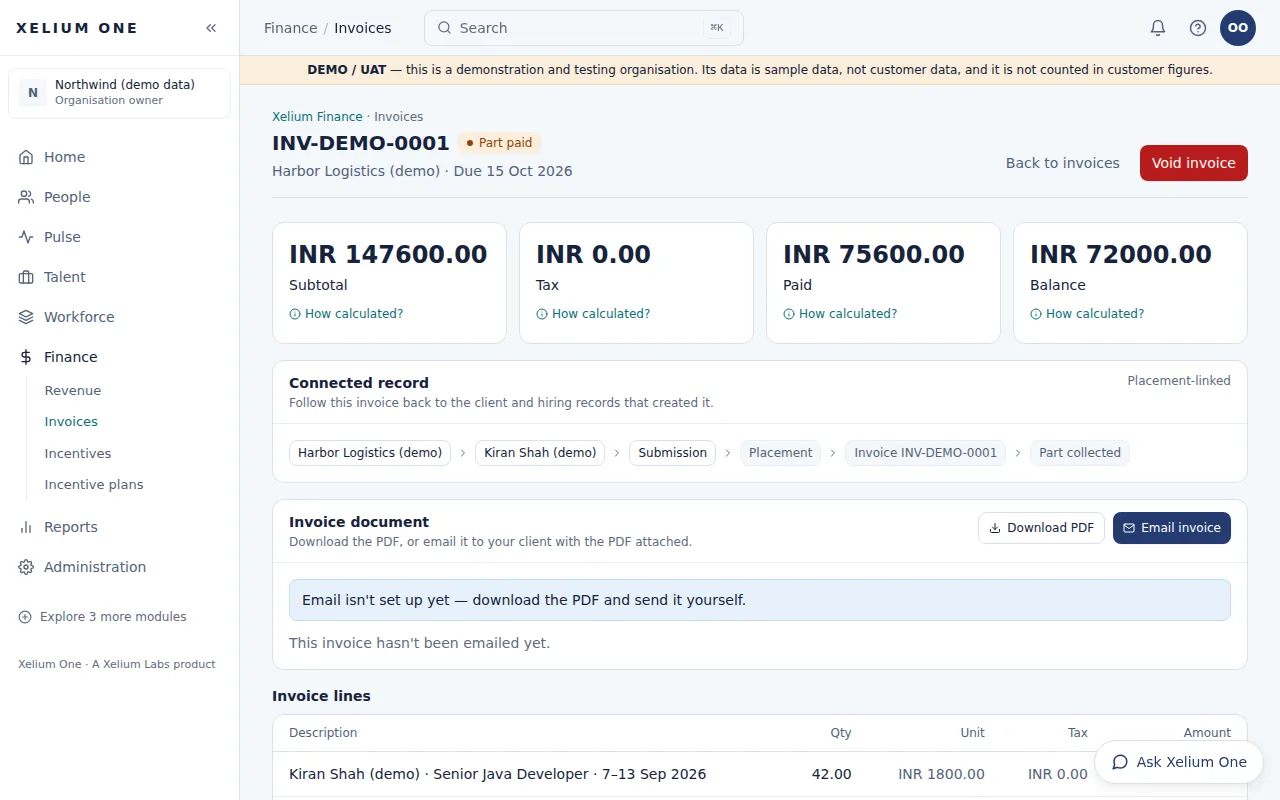
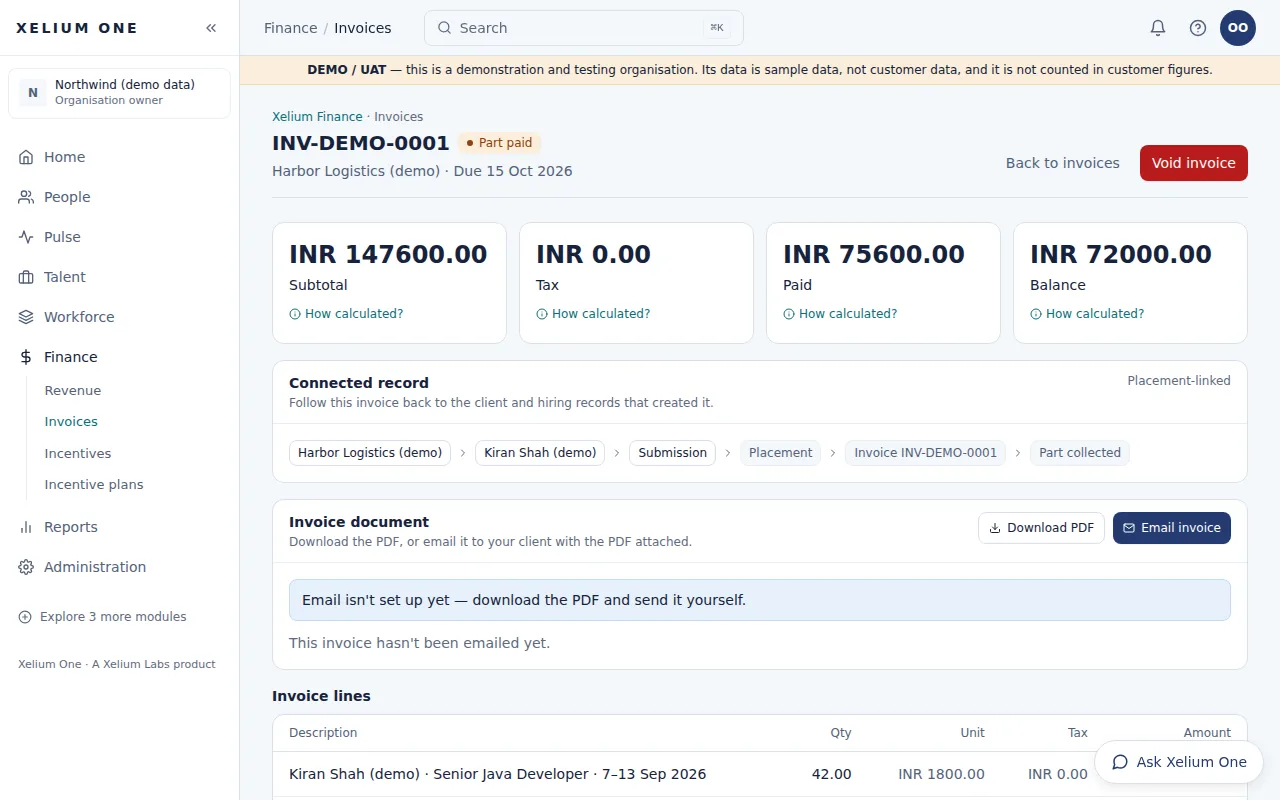
A part-paid demo invoice showing subtotal, tax, amount paid and balance, the connected record back to the client and placement, a Download PDF button and the invoice lines.
Real Xelium One screen · demo organisation, example dataA part-paid invoice, traceable to the client, placement and revenue. Open full size: Invoice

Draft and issue invoices to client accounts, record payments, and see part-paid, paid and overdue invoices — each line traceable to the revenue behind it.

Invoicing keeps each invoice next to the client and the revenue it bills.

Key points

  • Invoice lines, including lines from posted revenue
  • Issue, and void with confirmation (the record is kept)
  • Download an invoice as a PDF to send to your client
  • Record payments; invoices become part paid or paid
  • Due and overdue invoices
Explore Invoicing & Receivables

What it connects to

  • Xelium CRMInvoices are raised against CRM client accounts.
  • RevenueInvoice lines can come from posted revenue.
  • Analytics & ReportsReceivables outstanding appear on the executive Home page.
Previous: RevenueTip: use the ← and → keysNext: Analytics & Reports
Xelium OneXelium OneA Xelium Labs product

One Business. One Platform. People. Operations. Intelligence. Connected.

Platform

  • Explore the platform
  • All modules
  • Solutions
  • Build your Xelium One
  • Pricing

Modules

  • Xelium One Core
  • Xelium Pulse
  • Xelium Talent
  • Xelium CRM
  • Timesheets
  • Revenue
  • Incentives
  • Invoicing
  • Reports
  • Xelium Vendor (coming soon)

Resources

  • Product Tour
  • Security & trust
  • Founder's vision
  • FAQs
  • All resources

Company

  • Xelium Labs
  • Careers pages
  • Talk to us
  • Sign in
  • Get started
Xelium One · A Xelium Labs product