Xelium OneXelium One
PlatformModulesSolutions
  • Product TourSee Xelium One screen by screen
  • Security & trustHow your data is protected
  • Founder's visionWhy we are building Xelium One
  • FAQsAnswers to common questions
  • All resourcesGuides, pricing and more
Pricing
Product TourSign inGet started
  • Platform
  • Modules
  • Solutions
  • Pricing

Resources

  • Product Tour
  • Security & trust
  • Founder's vision
  • FAQs
  • All resources
Sign inGet started

Product Tour · no sign-up needed

Xelium One Product Tour

Walk through Xelium One in 11 short steps, from one shared Core to invoices and reports. Every picture is a real Xelium One screen from the demo organisation Northwind (demo data); the people, clients and amounts are example data.

Step 4 of 11Skip to Get started
  1. Meet Xelium One (seen)
  2. One Core (seen)
  3. People (seen)
  4. 4Pulse
  5. 5Talent & offers
  6. 6Timesheets
  7. 7Revenue
  8. 8Invoicing
  9. 9Reports
  10. 10Administration
  11. 11Get started

People. Presence. Progress.

Xelium Pulse
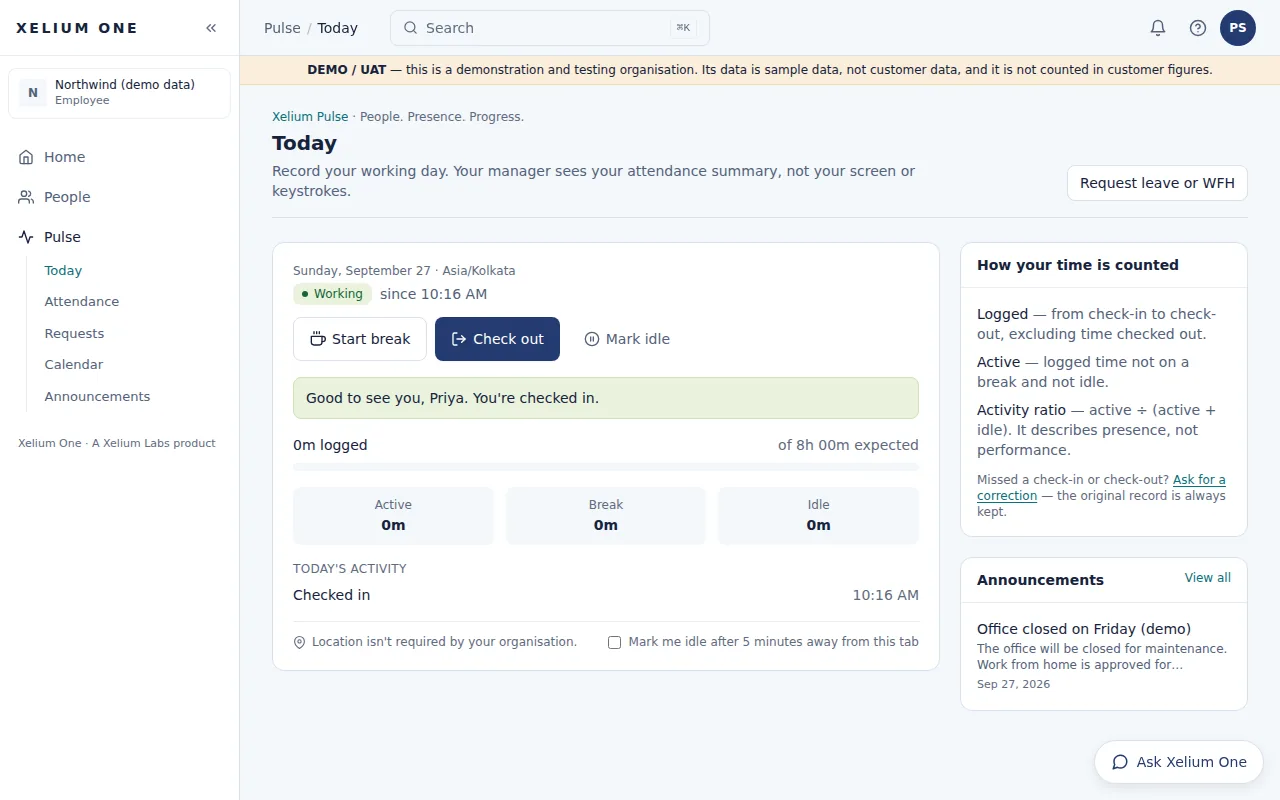
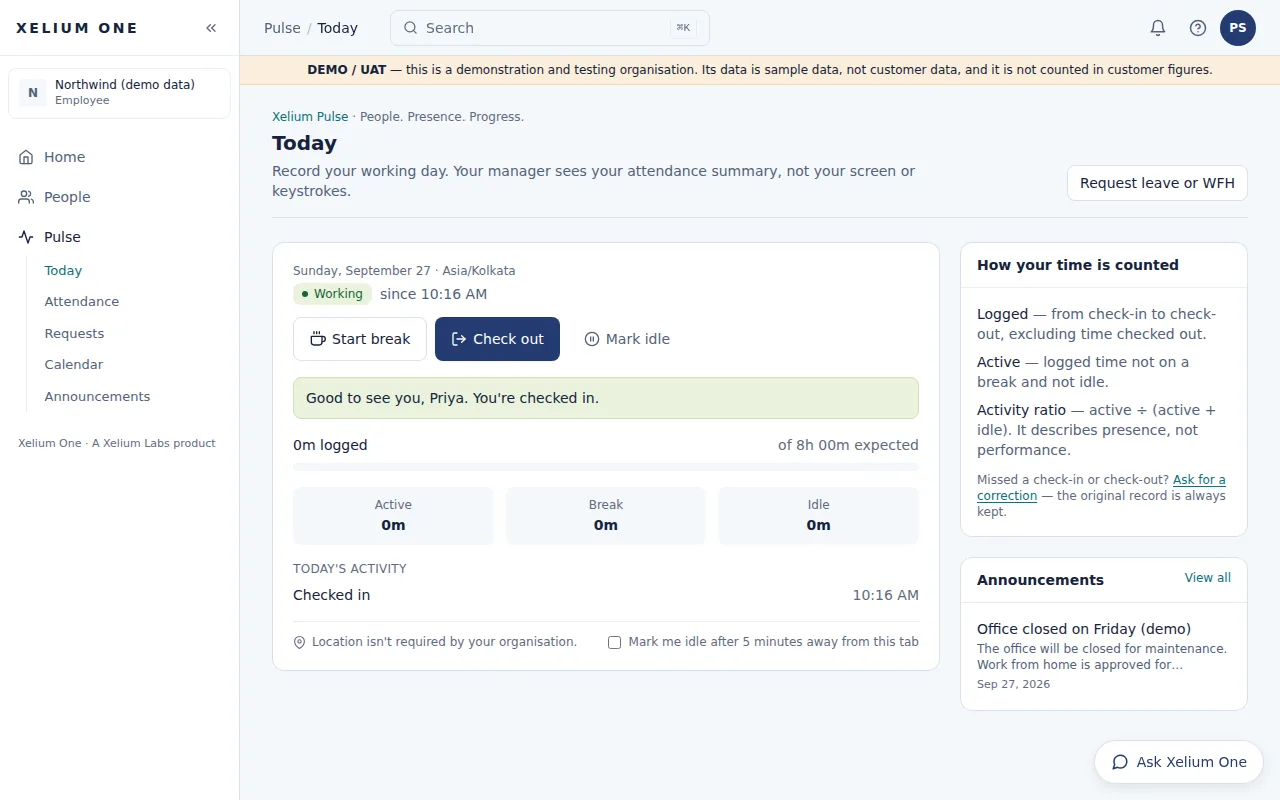
Xelium Pulse Today page for an employee who has just checked in: working status, buttons to start a break, check out or mark idle, and today's logged, active, break and idle time.
Real Xelium One screen · demo organisation, example dataAn employee's Today page just after checking in. Open full size: Employee view

Check-in and check-out, breaks, attendance, leave, work from home and corrections — with policies, calendars, approvals and team reports.

Pulse records the working day as it happens and routes every request to the right person.

Key points

  • Check-in and check-out
  • Breaks
  • Leave and work-from-home requests
  • Attendance corrections for missed check-ins or check-outs
  • Approval by the reporting manager or HR; your own requests can't be self-approved
Explore Xelium Pulse

What it connects to

  • PeopleRequests route to the reporting manager in People.
  • Xelium One CoreApprovals follow Core roles; every decision is recorded.
  • Analytics & ReportsAttendance appears in Reports alongside your other modules.
Previous: PeopleTip: use the ← and → keysNext: Xelium Talent
Xelium OneXelium OneA Xelium Labs product

One Business. One Platform. People. Operations. Intelligence. Connected.

Platform

  • Explore the platform
  • All modules
  • Solutions
  • Build your Xelium One
  • Pricing

Modules

  • Xelium One Core
  • Xelium Pulse
  • Xelium Talent
  • Xelium CRM
  • Timesheets
  • Revenue
  • Incentives
  • Invoicing
  • Reports
  • Xelium Vendor (coming soon)

Resources

  • Product Tour
  • Security & trust
  • Founder's vision
  • FAQs
  • All resources

Company

  • Xelium Labs
  • Careers pages
  • Talk to us
  • Sign in
  • Get started
Xelium One · A Xelium Labs product